
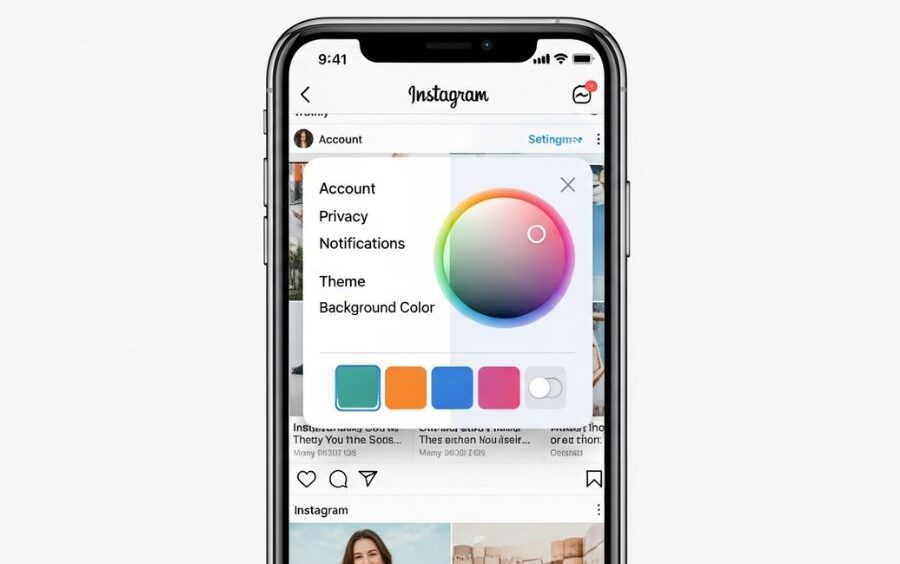
It is possible to make your content more interesting, attractive, and in accordance with personal or brand style by changing the background color on Instagram Stories. You can use solid, gradient, image, video, or branded color with easy built-in features to optimize your stories. Background customization with a proper background is a sure way of attracting views to the posts and making your social media look professional.You can change the background color of an Instagram Story to match your brand style.
How to Build an Instagram Story.
The initial step to add background color is to make a story on Instagram. On Instagram, you can share media, take photos or videos, and edit your content both in-app and also disappear after 24 hours, but may be saved as Highlights to be seen over the long run. The points discussed here are the necessary items to begin your first story.
Step 1 – Instagram Story Editor.
Tapping the plus (+) icon on your profile or swiping right on your feed opens the Stories editor. Tap on the bottom left button and choose Story and either take a photo/video or pick a media from your gallery.
Step 2 – Add Stickers, Text, or Music.
The top menu allows you to add stickers, text, captions, or music. You may prepare some customization of components and then apply a background color.
Step 3 – Publish Your Story
After editing, tap Your Story. A colored highlight will be added around your profile stating that your story is live.
Inclusion of Solid Color Background.
One of the easiest methods of making your story attractive to the eyes is through a solid color background. Instagram can help you make your content pop and stand out with its Draw tool, which enables you to place any color in the palette as many times as you want and cover the entire screen. This approach is fruitful both in textual tales and photographs.
Step 1 – Select Media
Open Story, post a photo, or take a new picture. Click the ellipses (…) and choose the option of drawing.
Step 2 – Choose Color and Fill
Choose a pen icon and choose a color from the palette. Touch and hold on the screen to fill in the background with any color.
Step 3 – Add Stickers or Images
Sticker Tap the Sticker button to add photos or other design options on top of your coloured background.
Adding a Gradient Background.
Gradient backgrounds are also interesting as they combine several colors. The in-app Create feature of Instagram will enable you to switch between the set gradients or create your unique ones and make the stories look professional, even without having to use third-party applications.
Step 1 – Open Create Tool
To create a gradient background automatically, tap the plus (), and then pick Story, then tap Create on the left to create a gradient background.
Step 2 – Customize Gradient
To view the gradient options until you locate the best one to use in your story, tap the small circle icon in the upper-left.
Step 3 – Add Photos or Stickers
Add images, text, or icons onto a gradient to finish your design by clicking the Sticker button and making the gradient.
Backgrounds (Images/Videos).
Immersive stories can be developed with the help of photos or videos as a background. Additional images, text, or stickers can be added to create a more active, multi-layered look that is more appealing.
Step 1 – Upload Image or Video
Click the plus (+) and choose your media either in the gallery orthe camera roll.
Step 2 – Add Layers
The sticker tool allows you to add other photos, videos, or text to complete your background.
The Use of Color Tints or Branded Colors.
Photos or videos with a similar theme are able to be enriched with a color tint. The visual identity is enhanced with branded colors, and tints might also be used to produce mood effects.
Step 1 – Open Draw Tool
Tap the ellipses (…), and tap Draw.
Step 2 – Highlighter or Eyedropper.
Click on the Highlighter button, select a color, or Eyedropper to select colors right out of your image. Press and hold to apply a tint.
Step 3 – Replace/ Remove Overlay.
Tap the slider to create more subtle effects or press and hold one more time to turn it into a solid background.
Troubleshooting Background Color Problems.
Sometimes, Instagram does not allow changes in the background because of the type of posts, bugs in the application, or the use of an old version. The most common problem is solved by using the most up-to-date version of the app and verifying the type of content.
Type of Story
Some shared posts or templates might have a default gradient that is impossible to edit.
App Version or Bugs
Install Instagram in the new version to have the capabilities of full background customization.
Table: Instagram Story Background Options
| Background Type | How to Apply | Tools/Features | Best Use Example |
| Solid Color | Draw tool, select color | Pen, Sticker | Simple, branded, or text stories |
| Gradient | Create tool | Color presets, toggle option | Dynamic, visually engaging stories |
| Image | Upload from the gallery | Sticker overlay, text | Layered, personalized content |
| Video | Upload via Green Screen | Media library, Stickers | Animated or immersive stories |
| Tint / Branded Color | Draw tool, Highlighter/Eyedropper | Opacity adjustments | Brand-aligned themes or filters |
FAQs
What is the best way to edit the background color on an Instagram Story?
To create an Instagram Story, open it, tap on the Draw tool, select a shade in the palette, and then press and hold the screen to fill the background. This allows you to choose hard colors easily.
Is it possible to place a gradient background in my Instagram story?
Yes – Tap on the Create or color picker mode and tap through the preset gradients and swipe through more colorful, dynamic Story backgrounds.
Why does my Story not have the background color choice?
This is because sometimes the color option is not available due to an image occupying the entire screen, or the app must be updated, which can be assisted by reopening the editor.
What do I do to customize the background of a post to my Story?
To share a post, select a color using the Draw tool and long-press the screen to fill the space surrounding the post with the color you have chosen.
Is it possible to use a photo as the background of my Story?
Yes – tap the photo of your camera roll and add other contents on top; Instagram will use that photo to form the background of the Story.
What is the way to add a tint over a photo in my Story?
You can choose your media, open the Draw tool, choose a light color with the Highlighter or Eyedropper, and press and hold to apply an overlay of a tint.
Is it possible to use my own or branded colors on my Story background?
You will be able to – add a palette picture, then Eyedropper the colors to be the same ones, and fill out your background to provide a uniform branding.
What happens to my background once I have edited it?
When sharing some types of content, Instagram can turn the colors inverted; in most cases, by simply closing and opening the application or selecting an alternative application, the issue can be resolved.
Is it possible to save custom background colors on Instagram?
Not at the moment, Instagram does not save custom color presets yet, and you can recreate them with the help of the color picker tool.
Are external tools used to customize backgrounds on Instagram?
Yes – there are apps such as Canva and Instasize that allow you to create backgrounds using either custom colors, patterns, or textures, and then post them to the stories.